When an LED display suddenly goes black, flickers, loses signal, or shows abnormal colors, replacing the LED module should not be the first step.
Many LED display problems come from power supplies, signal cables, controllers, receiving cards, or incorrect configuration rather than damaged LED modules.
A good LED display troubleshooting process starts by locating the affected area and then checking the power and signal chain step by step.
This guide explains how to diagnose common LED display problems and decide what to check next.
Before replacing any component, determine how much of the display is affected.
| Fault Area | Check First |
|---|---|
| Entire LED screen | Main power, video source, controller |
| Several cabinets | Signal cable, receiving card, power |
| One cabinet | PSU, network cable, receiving card |
| One LED module | Power cable, ribbon cable, HUB board |
| One row or column | Ribbon cable, driver IC, PCB |
| Individual pixels | LED lamps, solder joints |
For example, if the entire LED screen is black, it is unlikely that all LED modules failed at the same time.
Start with the shared components: main power, video source and LED controller.
If only one module is black while the surrounding modules work normally, the fault is more likely inside that cabinet.
A simple diagnostic sequence can save considerable repair time:
Power → Video Source → Processor → Sending Card → Network Cable → Receiving Card → HUB Board → LED Module
Do not skip directly to the LED module.
Check whether:
If only one cabinet is dark, compare its power status with a working cabinet.
Make sure the computer, media player, or other source is actually sending video.
Check the HDMI, DVI, or other input cable and confirm that the correct source is selected on the processor.
Trying another cable or source is often the fastest way to eliminate this possibility.
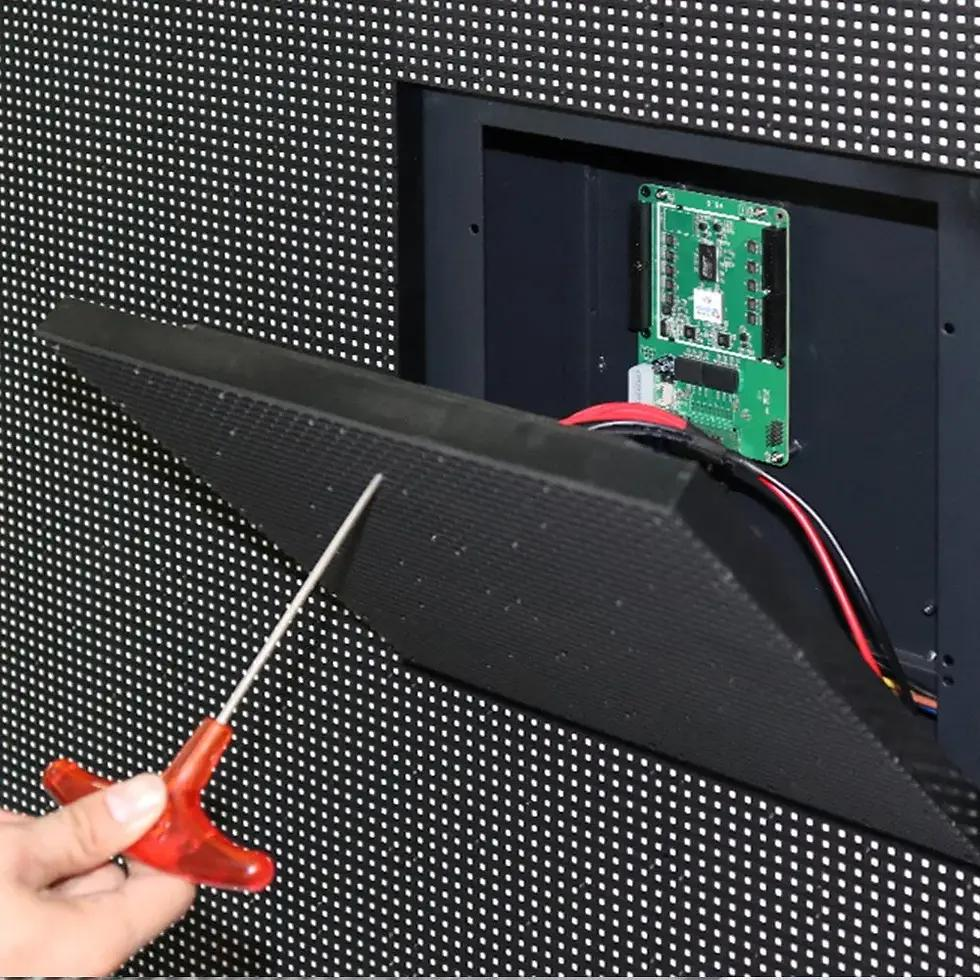
If the display has power but no image, inspect the processor, sending card, and control software.
Incorrect resolution, cabinet mapping, receiving-card parameters, or configuration files can cause a black or abnormal screen even when the LED hardware is working correctly.
Check the network cable between cabinets.
A loose or damaged cable can cause one cabinet—and sometimes all cabinets after it—to lose signal.
If power and external signals are normal, continue with:
Receiving Card → HUB Board → Ribbon Cable → LED Module
This method helps isolate the fault before replacing parts.
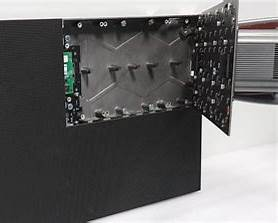
An LED display black screen is one of the most common faults, but the affected area gives important clues.
Check in this order:
If the whole display stops working at the same time, check shared power and control components before individual modules.
Check:
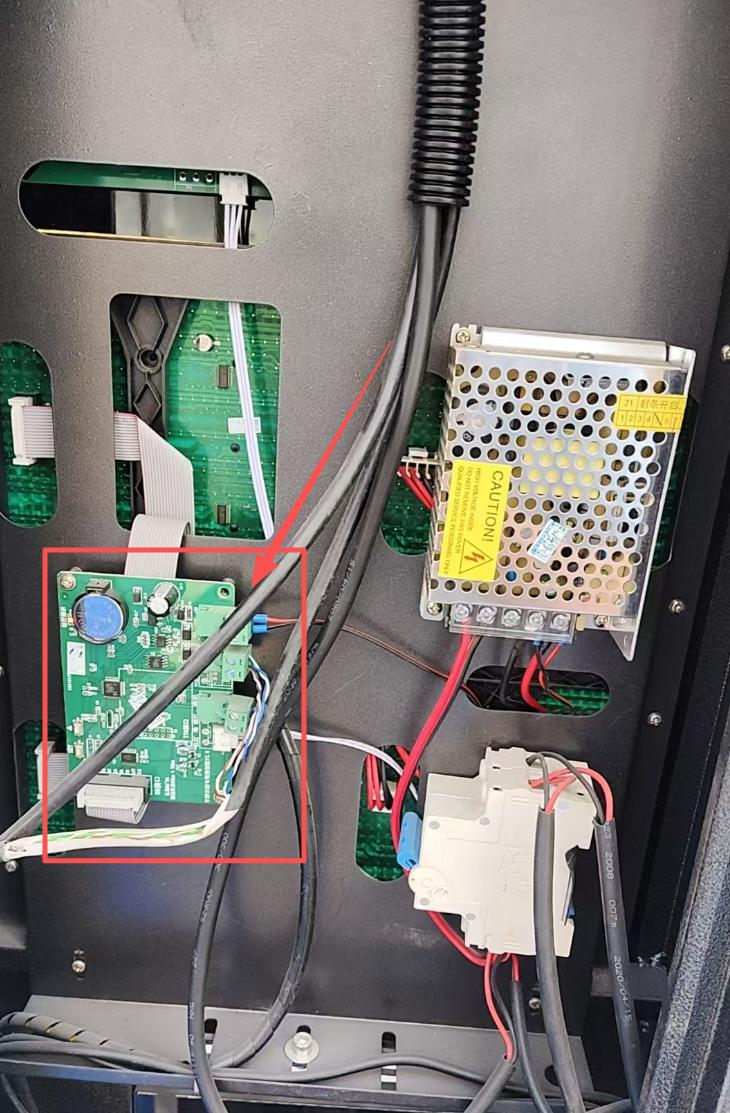
If several cabinets after it are also black, check the signal connection between the last working cabinet and the first failed cabinet.
Check:
A loose ribbon cable can look very similar to a failed LED module.
LED display flickering may be caused by either signal or power problems.
Common causes include:
The location of the flickering is important.
If the entire LED display flickers, inspect the main power, video source, processor, and sending card.
If one cabinet flickers, inspect its receiving card, network cable, and power supply.
If flickering mainly appears when recording the screen with a camera, check the display refresh rate and camera settings before assuming there is a hardware fault.
A dead pixel remains dark while surrounding pixels work normally.
A stuck pixel may stay red, green, blue, or another fixed color.
Possible causes include:
A few dead pixels do not normally mean the entire display needs replacement.
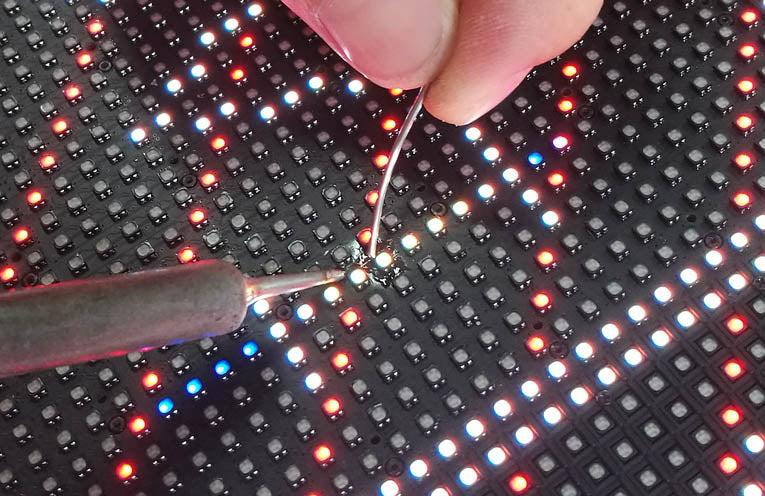
Technicians can often replace individual LED lamps. If many pixels fail in the same area or the PCB is seriously damaged, replacing the LED module may be more practical.
Sometimes one LED module appears brighter, darker, or slightly different in color from the surrounding modules.
Possible causes include:
Check brightness and color calibration before replacing hardware.
This is especially important when replacing modules on an older LED display. A new module can work perfectly but still appear brighter than older modules.
Signal problems can cause:
Use the complete signal path:
Video Source → Processor → Sending Card → Network Cable → Receiving Card → HUB Board → LED Module
For example, if Cabinet 1 works but Cabinets 2–5 are black, inspect the signal connection between Cabinets 1 and 2 before checking all cabinets individually.
The receiving card distributes image data to the LED modules inside a cabinet.
Possible signs of a receiving card problem include:
Before replacing the receiving card, check its network cable, power connection, configuration file, and HUB connection.
A technician can also compare the suspected receiving card with a known working cabinet to help isolate the fault.
Outdoor displays face additional environmental risks.
Rain, humidity, dust, heat, corrosion, and unstable power can gradually damage electrical components.
Watch for:
If water enters an LED cabinet, disconnect the affected section from power and inspect it before powering it again.
Regular inspection of waterproof seals, ventilation, power systems, and connectors can prevent minor problems from becoming expensive failures.
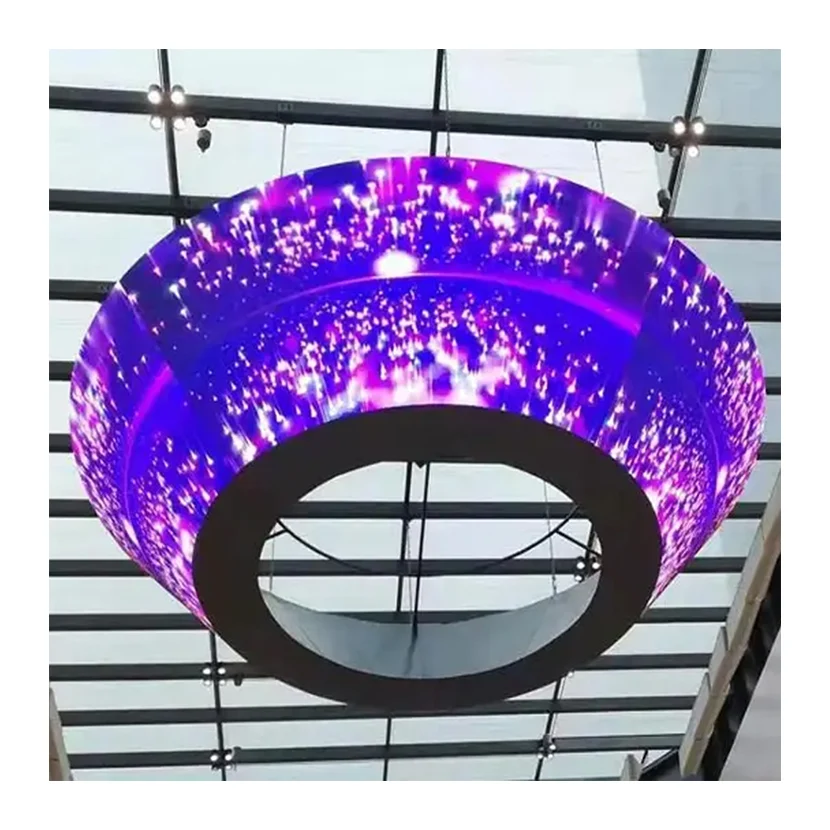
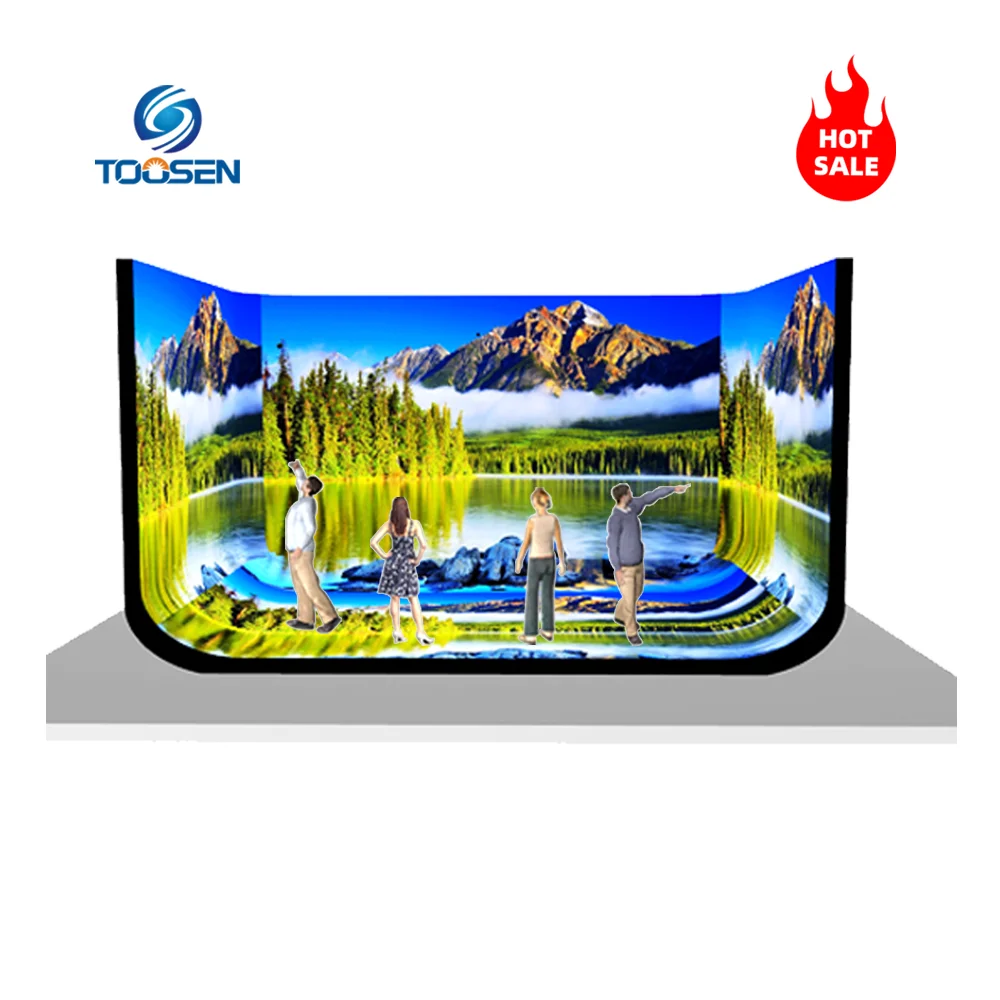
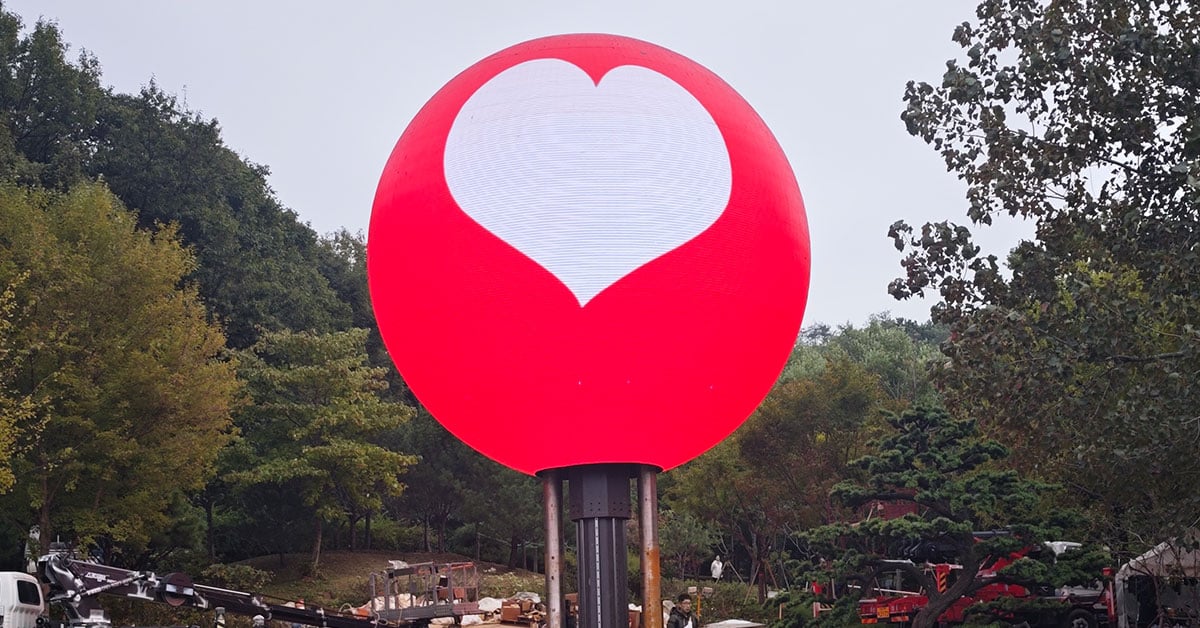
A spherical LED display or custom-shaped LED screen follows the same basic troubleshooting principles, but its structure creates additional challenges.
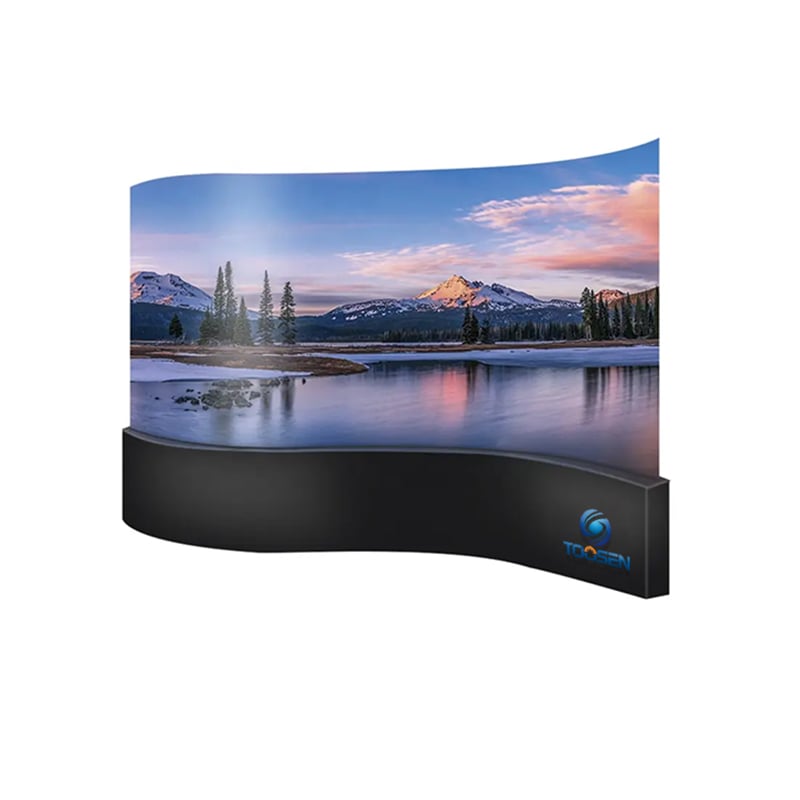
Spherical screens may use trapezoidal or flexible LED modules to form the curved surface, while other creative displays may require customized modules and signal routing.
Common problems include:
For example, if one section of a sphere displays the wrong part of an image but its LEDs illuminate normally, check the pixel mapping and receiving-card configuration before replacing the module.
For customized displays, keeping the original configuration files is especially important because rebuilding an irregular screen map can take more time than replacing a standard rectangular cabinet.
Not every LED display problem requires module replacement.
Repair may be suitable when:
Replacement may be better when:
Keeping compatible spare modules, receiving cards, power supplies, ribbon cables, and network cables can reduce downtime.
Preventive maintenance is usually easier than emergency repair.
Regularly:
Small changes in brightness, temperature, or signal stability can sometimes indicate a developing problem.
Effective LED display troubleshooting starts with diagnosis rather than replacement.
First identify whether the fault affects the whole screen, several cabinets, one module, or individual pixels. Then follow the system step by step:
Power → Signal → Controller → Receiving Card → HUB Board → LED Module
This approach helps locate the real cause faster and avoids replacing working components unnecessarily.
For conventional LED screens, spherical displays, flexible displays, and custom-shaped LED projects, keeping wiring diagrams, configuration files, and compatible spare parts can also make future maintenance much easier.
Check the main power, video source, processor, sending card, main signal cable, and controller configuration first. If the entire display is black, do not immediately assume the LED modules have failed.
Check the module power connector, ribbon cable, HUB board, and LED module. Loose connections can produce the same symptom as a damaged module.
 EN
EN
 AR
AR
 BG
BG
 HR
HR
 CS
CS
 DA
DA
 NL
NL
 FI
FI
 FR
FR
 DE
DE
 EL
EL
 HI
HI
 IT
IT
 JA
JA
 KO
KO
 NO
NO
 PL
PL
 PT
PT
 RO
RO
 RU
RU
 ES
ES
 SV
SV
 TL
TL
 ID
ID
 SR
SR
 UK
UK
 VI
VI
 ET
ET
 HU
HU
 TH
TH
 TR
TR
 FA
FA
 AF
AF
 MS
MS
 GA
GA
 HY
HY
 AZ
AZ
 MN
MN
 UZ
UZ